A Brief History of Oracle’s Upgrade Options
For many use cases, upgrading databases is a core best practice, ensuring access to critical security fixes and new features that protect your data and enhance your ability to access and manipulate it. In 2019, Oracle introduced its AutoUpgrade utility to assist in this process. This tool’s main purpose is to migrate Oracle from one major version to another. However, initial adoption was slow and some questioned whether the tool was ready for prime time. Most organizations preferred the quick click flow and rock-solid history with Database Upgrade Assistant (DBUA), finding AutoUpgrade’ s configuration files and complexity an unnecessary burden. Unfortunately, that initial impression left many not willing to consider AutoUpgrade, opting for options like DBUA, manual dbupgrade scripts, GoldenGate, or even executing an export/import process. Starting with Oracle Database 23ai (since re-branded to 26ai at the end of 2025), Oracle removed support for the DBUA and dbupgrade options (MOS note 3000672.1). This change caused many DBAs to consider using AutoUpgrade, perhaps begrudgingly!
A Recent Example of Real-World Upgrade
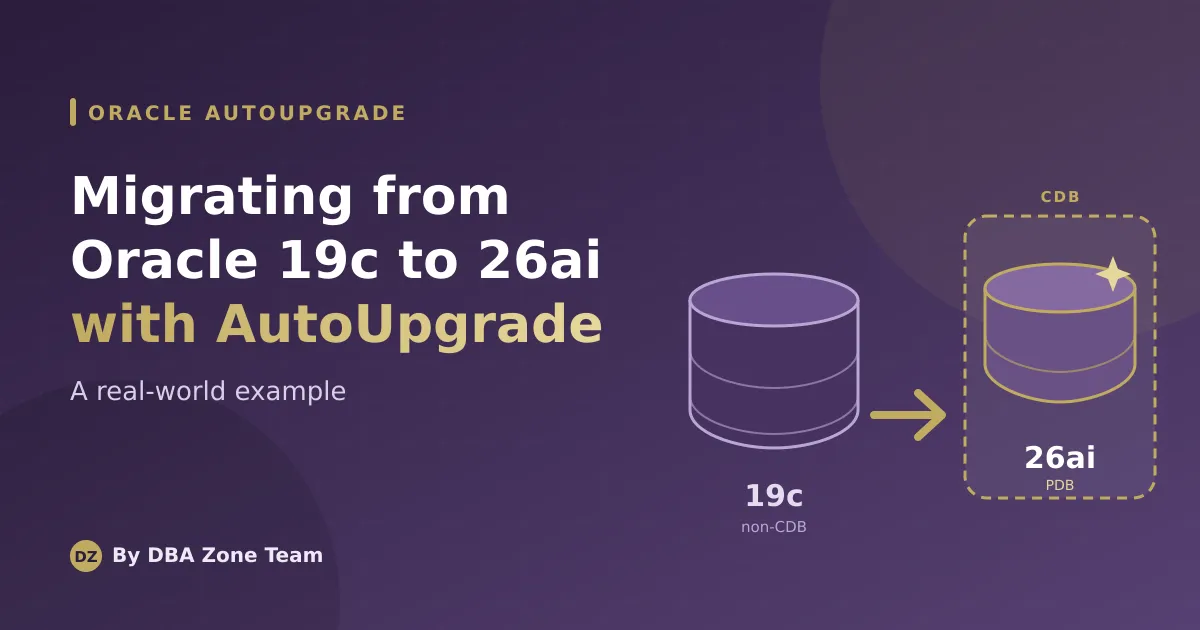
We recently worked with a client to upgrade their Oracle 19c database. It was a non-multi-tenant configuration and they wanted to move to Oracle 26ai. For licensing and risk management purposes, our customer needed a quick, Oracle-approved upgrade solution, wantedto support multiple migrations, and neededto avoid purchasing additional licenses. Based on these requirements, we identified AutoUpgrade as the best solution.
Preparing the Upgrade
Before running AutoUpgrade, four preparation steps are required. First, download the latest autoupgrade.jar from Oracle’s software site. Second, ensure a target container database (CDB) exists for the migration to land in. Since 26ai no longer supports the non-CDB architecture, the target database must be plugged into a CDB. In the example below, the CDB is on the same host as the source database. Third, ensure viable backups of all systems, both database and operating system. Finally, set up a configuration file. The fields are self-explanatory: the “sid” is the source and the “target” is the CDB where the migrated database will land. A basic configuration file might look like this:
global.global_log_dir=/home/oracle/autoupgrade/logs
upg1.sid=PRODCRM
upg1.source_home=/app/oracle/product/19.3.0
upg1.target_home=/app/oracle/product/26.0.0
upg1.target_cdb=CDBPROD
Step 1: Analyze
After setting up the environment, there are two steps to running AutoUpgrade: - analyze and deploy. As you might assume, the “analyze” step is a read-only operation that simply assesses your likelihood of success when you actually migrate. It checks many aspects of both the source and target system and identifies any blockers. Analyzing is often an iterative, multi-cycle process of reviewing the log, making changes, and then re-running analyze until there are no remaining issues. Common issues you may run into include not having the source database in archivelog mode, using password functions that aren’t going to be supported in 26ai, insufficient tablespace size in one of the non-user tablespaces, etc. Below is an example of a successful run of AutoUpgrade’s analyze step:
java -jar /oracle/autoupgrade/autoupgrade.jar -config /oracle/autoupgrade/cfg/prod_to_cdb.cfg -mode analyzeThe output should look something like this:
==========================================
          Autoupgrade Summary Report
==========================================
[Date]           Sun Oct 4 06:31:01 EDT 2026
[Number of Jobs] 1
==========================================
[Job ID] 102
==========================================
[DB Name]                PRODCRM
[Version Before Upgrade] 19.31.0.0.0
[Version After Upgrade]  23.26.1.0.0
------------------------------------------
[Stage Name]    PRECHECKS
[Status]        SUCCESS
[Start Time]    2026-10-04 06:29:12
[Duration]      0:00:49
[Log Directory] /oracle/autoupgrade/logs/PRODCRM/102/prechecks
[Detail]         /oracle/autoupgrade/logs/PRODCRM/102/prechecks/prodcrm_preupgrade.log
                Check passed and no manual intervention needed
------------------------------------------
Step 2: Deploy
Once satisfied with “analyze”, run deploy. This operation usually takes a while. It’s executed by the same command as “analyze”, but with a different parameter. Of course, the source database will be unavailable for the duration of the migration. Below is an example of a successful run of AutoUpgrade’s deploy step. Start with this command:
java -jar /oracle/autoupgrade/autoupgrade.jar -config /oracle/autoupgrade/cfg/prod_to_cdb.cfg -mode deployThe output should look something like:
[
  AutoUpgrade 26.5.260807 launched with default internal options
  Processing config file ...
+--------------------------------+
| Starting AutoUpgrade execution |
+--------------------------------+
1 Non-CDB(s) will be processed
Type 'help' to list console commands

upg> Job 102 completed ------------------- Final Summary --------------------
Number of databases            [ 1 ]

Jobs finished                  [1]
Jobs failed                    [0]
Jobs restored                  [0]
Jobs pending                   [0]

Please check the summary report at:
/oracle/autoupgrade/logs/cfgtoollogs/upgrade/auto/status/status.html
/oracle/autoupgrade/logs/cfgtoollogs/upgrade/auto/status/status.log
Again, review this output and the associated logs closely to determine if there were any issues. If there are none, the source database is shut down and now lives as a pluggable in the target container database.
Conclusion
There you have it: a real-world example of using Oracle AutoUpgrade to migrate a 19c non-CDB database to Oracle 26ai. Although some DBAs may still remember AutoUpgrade’s early challenges, our recent experience illustrates how useful the tool has become for both identifying potential migration issues ahead of time and executing the upgrade.
For organizations facing the move from 19c to 26ai, having experienced database administration professionals like the DBA Zone available to plan, test, troubleshoot, and execute the migration can turn what initially looks like a significant undertaking into a much more manageable process. If you’re looking for help managing your critical database infrastructure, DBA Zone can assist. Let’s chat!