Why Setting the Correct Collation is Important
Every database needs a defined set of rules for comparing and sorting character data, including how it treats case sensitivity, accents, and other linguistic differences. Those rules let applications and end users know what to expect when they work with the data. In SQL Server, these rules are called a collation. Setting a database collation that differs from what your applications and end users expect is recipe for endless errors, broken pipelines, unhappy colleagues, and potentially an uncomfortable meeting with your manager. When setting up a database, it is important to set this correctly to avoid those headaches. For Microsoft SQL Server, instance-level collation is chosen when SQL Server is installed. That decision governs the system databases and metadata and becomes the default for every new database created on the instance, including tempdb. Like a house built on a poor foundation, an instance with the wrong collation sets you up for problems down the road: queries that sort in an unexpected order, international characters that don’t behave the way you or your application expect, and collation conflict errors when user databases don’t match tempdb.
A Customer Faces a Dilemma
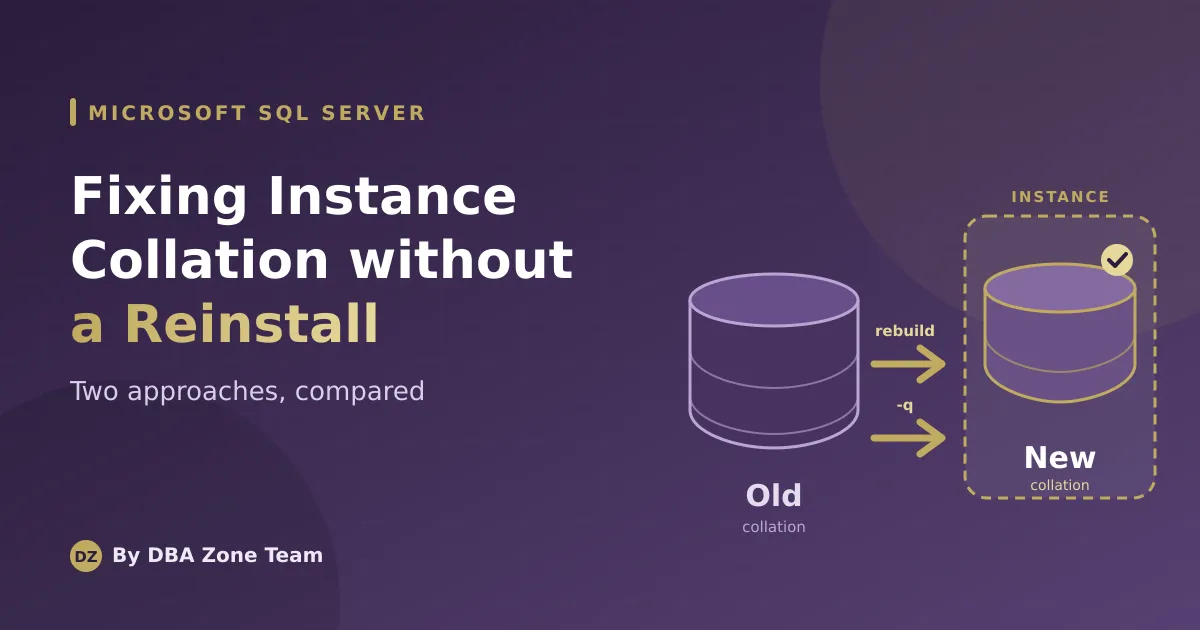
We recently worked with a client needing to change the collation for a SQL Server 2022 instance. They had previously worked with another vendor whose immediate reaction to this problem was to completely rebuild the environment. It was an extreme solution to a common problem that could have been solved more gracefully and efficiently. We’ll explore two alternative methods to correct this problem without engaging in a full uninstall and reinstallation, thus saving significant time and effort and reducing risks. The first method involves rebuilding the system databases. The second method simply updates system metadata. In both of examples below, we are changing the collation to “SQL_Latin1_General_CP1_CI_AS”.
Method #1: Rebuild the System Databases
Microsoft officially documents and recommends this approach when fixing collation issues. This option will rebuild the following system databases: master, model, msdb, and tempdb. Please note that this process recreates the system databases and removes any custom objects or configuration stored within them. That includes items like:
o Logins o SQL Agent jobs o Linked servers o Credentials o Database Mail o Operators o SSISDB references o Custom server configuration o Knowledge of user databases (mdf/ldf locations)
Therefore, before running the command below, be sure to pull out this data so that it can be easily recreated after the rebuild. After preparing your environment for this critical change, including taking full OS and database backups and documenting any information needed from the system databases, execute the command below using setup.exe:
C:\Program Files\Microsoft SQL Server\170\Setup Bootstrap\SQL2022> .\setup.exe /QUIET /ACTION=REBUILDDATABASE /INSTANCENAME=MSSQLSERVER /SQLSYSADMINACCOUNTS="win1\administrator" /SQLCOLLATION=SQL_Latin1_General_CP1_CI_AS /SAPWD=Password1234The parameters used are:
| Parameter | Meaning |
|---|---|
| /QUIET | Runs unattended with no GUI prompts |
| /ACTION=REBUILDDATABASE | Drops and recreates the system databases (master, model, msdb, tempdb) |
| /INSTANCENAME=MSSQLSERVER | Specifies the target instance. Normally the default instance is MSSQLSERVER (all caps); I’d verify the exact name |
| /SQLSYSADMINACCOUNTS=“win1\administrator” | Grants sysadmin rights to this Windows account after the rebuild |
| /SQLCOLLATION=SQL_Latin1_General_CP1_CI_AS | Recreates the instance using a new default collation |
| /SAPWD=Password1234 | Sets the sa password if mixed authentication is enabled |
This will run quickly, usually under a minute. Afterwards, start the SQL Server service and verify that the collation has been changed:
select convert(varchar(256), SERVERPROPERTY('collation'));
GO
If the new collation is correct, reattach the user databases and recreate the objects discussed above that existed in the system databases (logins, jobs, etc).
Method #2: Update System Metadata
This method simply involves using the using the -q startup parameter to update system metadata. It is generally less disruptive because it preserves the existing system database metadata. Therefore, you do not lose the user database metadata, jobs, user accounts, etc. The downside is that this method is not documented by Microsoft and is not officially sanctioned. While this method has been used successfully by SQL Server administrators for years and has worked during testing on both SQL Server 2019 and SQL Server 2022 environments, organizations should evaluate their own support and risk requirements before using it in production. As with many database operations, the potential risks of this method include data corruption, data loss, extended downtime, and major costs incurred by your organization. Use caution, especially in a production environment.
This method starts the instance from the command line with a “-q” flag, telling SQL Server to rebuild and update system metadata to use the specified collation. As with the first method , take all prudent precautions before making a major change like this, including full OS and database backups. After that, stop all SQL Server-related services and open a command prompt (run as administrator) and execute the following:
"C:\Program Files\Microsoft SQL Server\MSSQL17.MSSQLSERVER\MSSQL\Binn\sqlservr.exe" -m -T4022 -T3659 -s"MSSQLSERVER" -q"SQL_Latin1_General_CP1_CI_AS"Then, press Ctrl+C to break out and terminate SQL Server. Finally, restart SQL Server services using your normal process and check the collation:
select convert(varchar(256), SERVERPROPERTY('collation'));
GO
You should see the new collation in place. Additionally, you should be able to see your user databases, jobs, user accounts, etc. In our testing, the instance-level collation was updated while preserving existing metadata, including user databases, logins, SQL Agent jobs, and linked server definitions. As with any operation affecting system metadata, validation should be performed after the change.
Conclusion
There you have it: two alternative and efficient ways to address a critical collation issue in Microsoft SQL Server without completely wiping your data and starting over. Please note that for both methods, changing the instance-level collation does not automatically change the collation of existing user databases. After the instance-level collation change, you’ll need to verify the collation of each database:
SELECT name, collation_name
FROM sys.databases;
Additional work may be required if database collations must match the new instance collation. This topic is beyond the scope of this post, but please reach out if you’d like more info how to accomplish this.
Having a managed database services partner with decades of knowledge and experience means you aren’t alone navigating huge obstacles when mistakes like this are found in your environment! If you’re looking for help managing your critical database infrastructure, DBA Zone can assist. Let’s chat!